December 17th, 2025
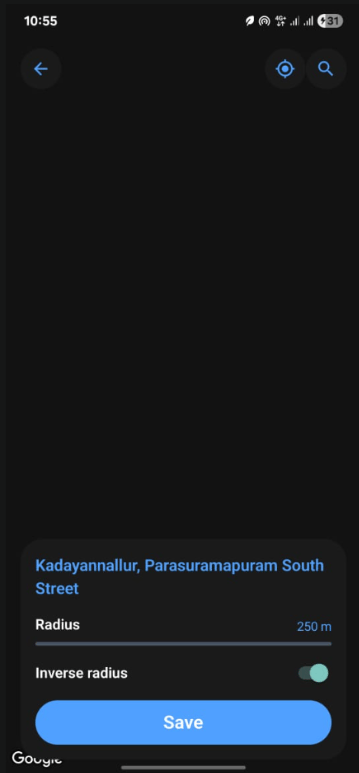
Operation Successful, But Patient Dead 💀 Today was the Google Maps integration day. We did everything right — SDK enabled, API key configured, native build complete, code working. The UI rendered perfectly. Location detected. Radius slider working. Save button ready. Just one small problem: The map was grey.The Goal
Q: What were we trying to build? A real, satellite-style Google Map inside our Expo + React Native screen:- Full-screen map
- Satellite / hybrid view
- Top overlay navbar
- Bottom condition panel
- Smooth native performance (not WebView)
Choosing the Correct Maps Tech
Q: What was the correct choice? ❌ What we did NOT want:- Google Maps Web SDK
- WebView-based map
- Fake / static maps
- Maps SDK for Android
- Via
react-native-maps - Provider =
PROVIDER_GOOGLE
Setting Up Google Cloud Console
Q: What did we configure?- Created a Google Cloud project
- Enabled Maps SDK for Android
- Generated a Maps Platform API key
- API key existed
- SDK was enabled
- Console showed “API Enabled”
Adding the API Key to Android
Q: Where does the API key go?<application>
✔ Correct key name
✔ Correct location
Lesson: Most Google Maps issues come from wrong placement — we did it right.
Installing the Native Maps Library
Q: How did we install react-native-maps?- Installed the package
- Picked a version compatible with Expo SDK
- Ensured native modules match Expo runtime
Rebuilding Native Code
Q: Why did we need to rebuild? Becausereact-native-maps is a native module.
- Long Gradle build (10+ minutes)
- NDK + C++ libs compiled
- APK successfully generated
First Runtime Error: AIRMap Not Found
Q: What was the first error?- App was running in a runtime without the native module
- Either old dev client, Expo Go, or app not rebuilt after install
- Full rebuild + install of APK
- Running in development build
Map Appears… But It’s Grey 😐
Q: What did we see?- Google watermark visible ✅
- Map UI present ✅
- Gestures work ✅
- Location detected ✅
- Radius slider working ✅
- But satellite tiles are blank/grey ❌
What Grey Map Actually Means
Q: What does grey map + Google watermark mean?- ✅ SDK initialized
- ✅ API key recognized
- ❌ Map tiles blocked by Google servers
- Code issue
- Expo issue
- react-native-maps bug
- Android bug
- WSL issue
The Real Root Cause: Billing Account Verification 🚨
Q: What was actually wrong? Google Cloud showed:“To avoid losing access to Google Cloud services, an administrator must verify this account.”And:
- Billing verification failed
- Documents rejected (photo / screenshot)
- Project entered restricted state
- A paid data product
- Not a “free API call”
- Served only to trusted + verified projects
PROJECT_STATUS = RESTRICTED
- SDK loads ✅
- UI renders ✅
- API key accepted ✅
- Tile requests silently denied ❌
- No error logs ❌
- Just grey tiles
Why This Feels Like “Just a Warning” (But Isn’t)
Q: Why did we think it was just a warning? Our intuition: “It’s only a warning, not a hard error.” Reality:- Google UI says “warning”
- Backend treats it as data restriction
- Maps doesn’t throw errors to prevent abuse
Final Confirmation Checklist
➡️ One missing piece blocks everything.
What We Learned
- Grey Google Map = billing / project trust issue
- Maps SDK ≠ free forever
- “API Enabled” ≠ “data allowed”
- Native map loading has two phases:
- SDK bootstrap (local)
- Tile serving (server-side)
- Google doesn’t log tile denials
- Code can be perfect and still show blank map
The Verdict
We did everything right technically. This wasn’t a dev mistake — it was:Google Cloud trust enforcement disguised as a UI warningAnd we handled it like real engineers:
- Debugged layer by layer
- Eliminated native issues
- Isolated infra cause
Summary
Today was brutal but educational. We went from:- Setting up Google Maps SDK correctly
- To native build and AIRMap fixes
- To discovering that grey tiles = billing verification issue
Proof of Work
The Grey Map of Doom: